n8n
Automate website screenshots in your n8n workflows
n8n integration
Add screenshot capture to your n8n automations with the AllScreenshots community node. Capture single pages, run bulk jobs across hundreds of URLs, compose screenshots into a single image, track async jobs, and react to completion events with a dedicated trigger node — all without writing code.
Package: @allscreenshots/n8n-nodes-allscreenshots on npm.
The package ships two nodes:
- Allscreenshots — the action node for capturing and managing screenshots.
- Allscreenshots Trigger — a webhook receiver that fires when jobs complete.
Installation
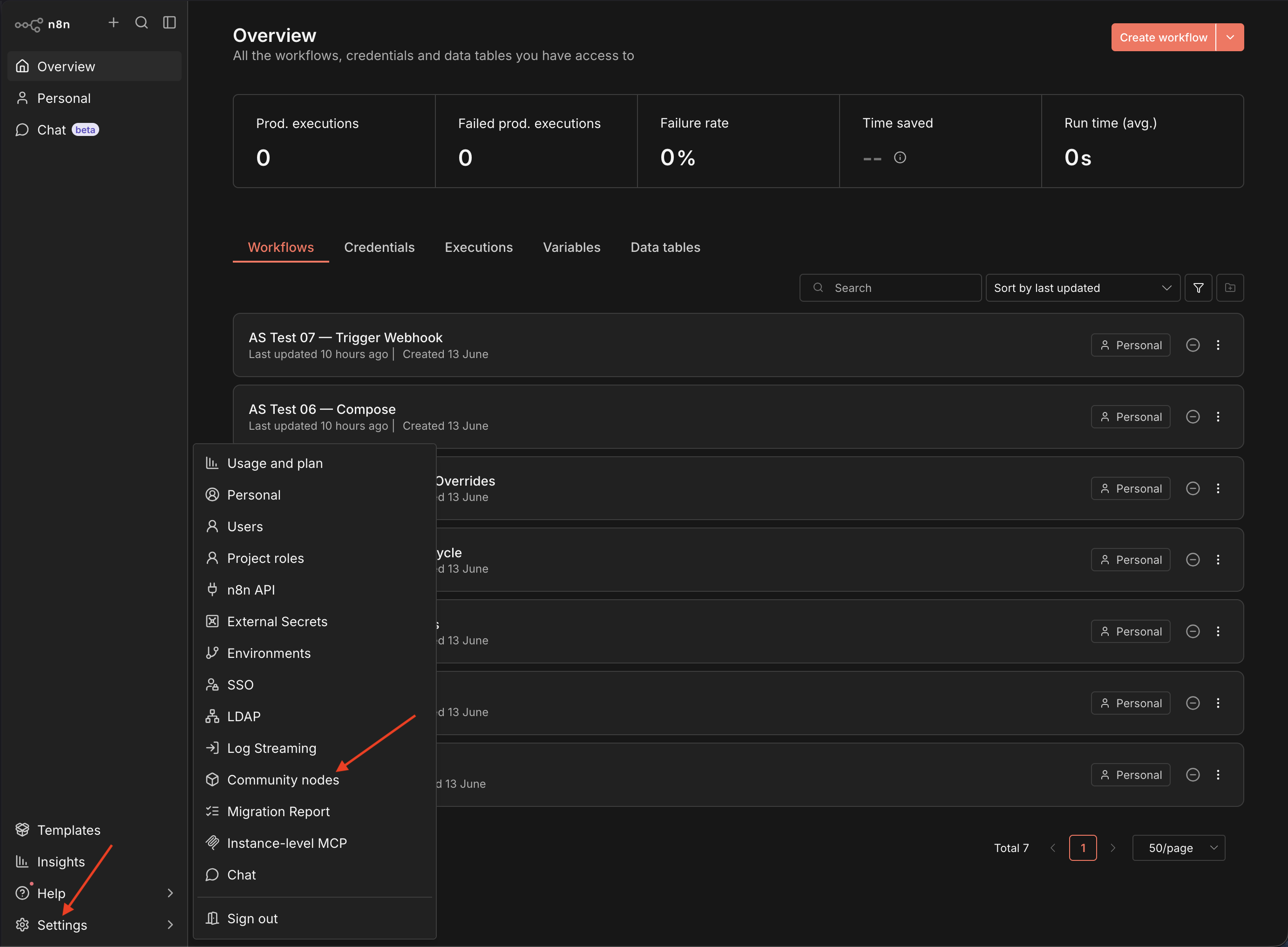
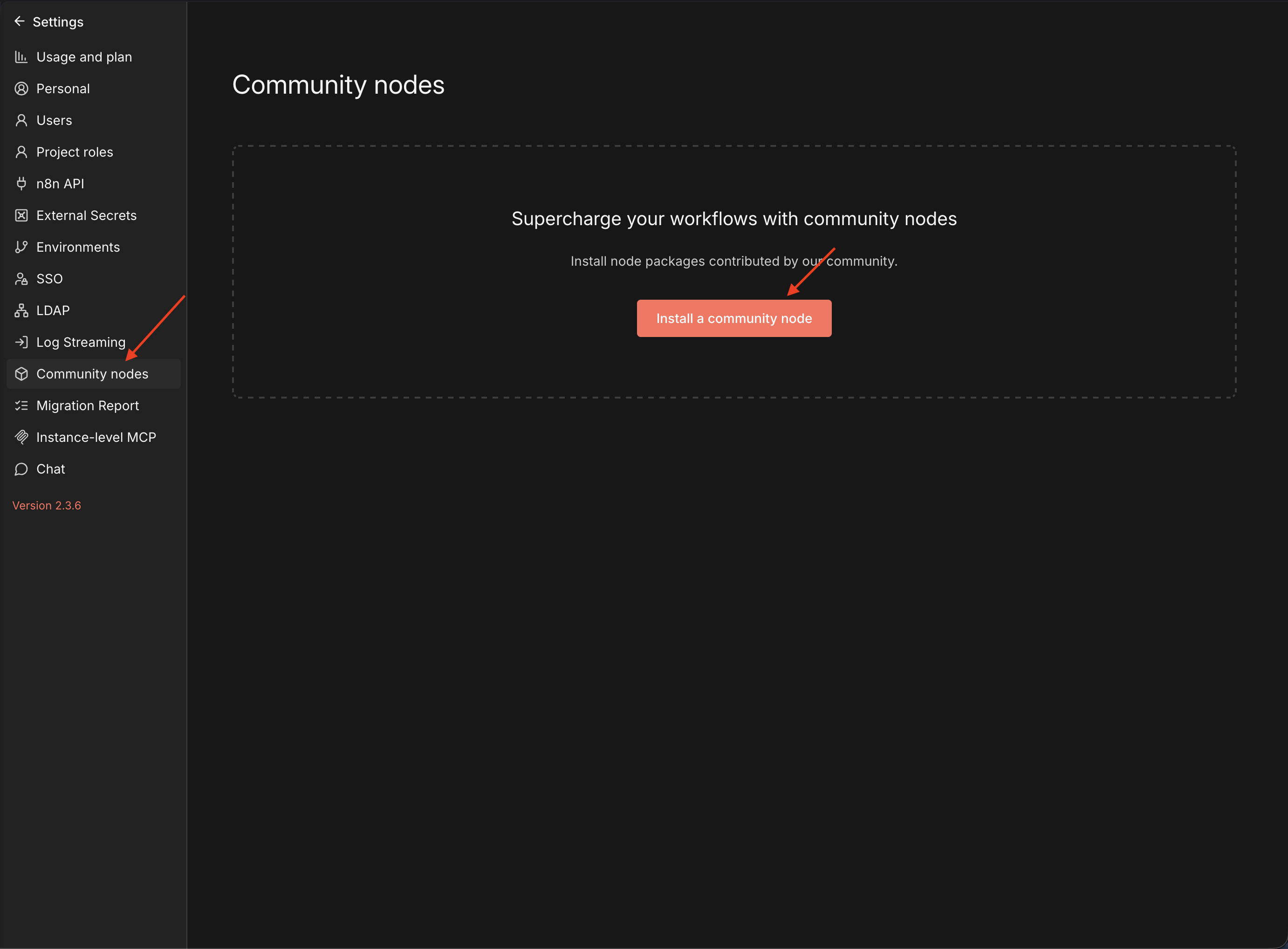
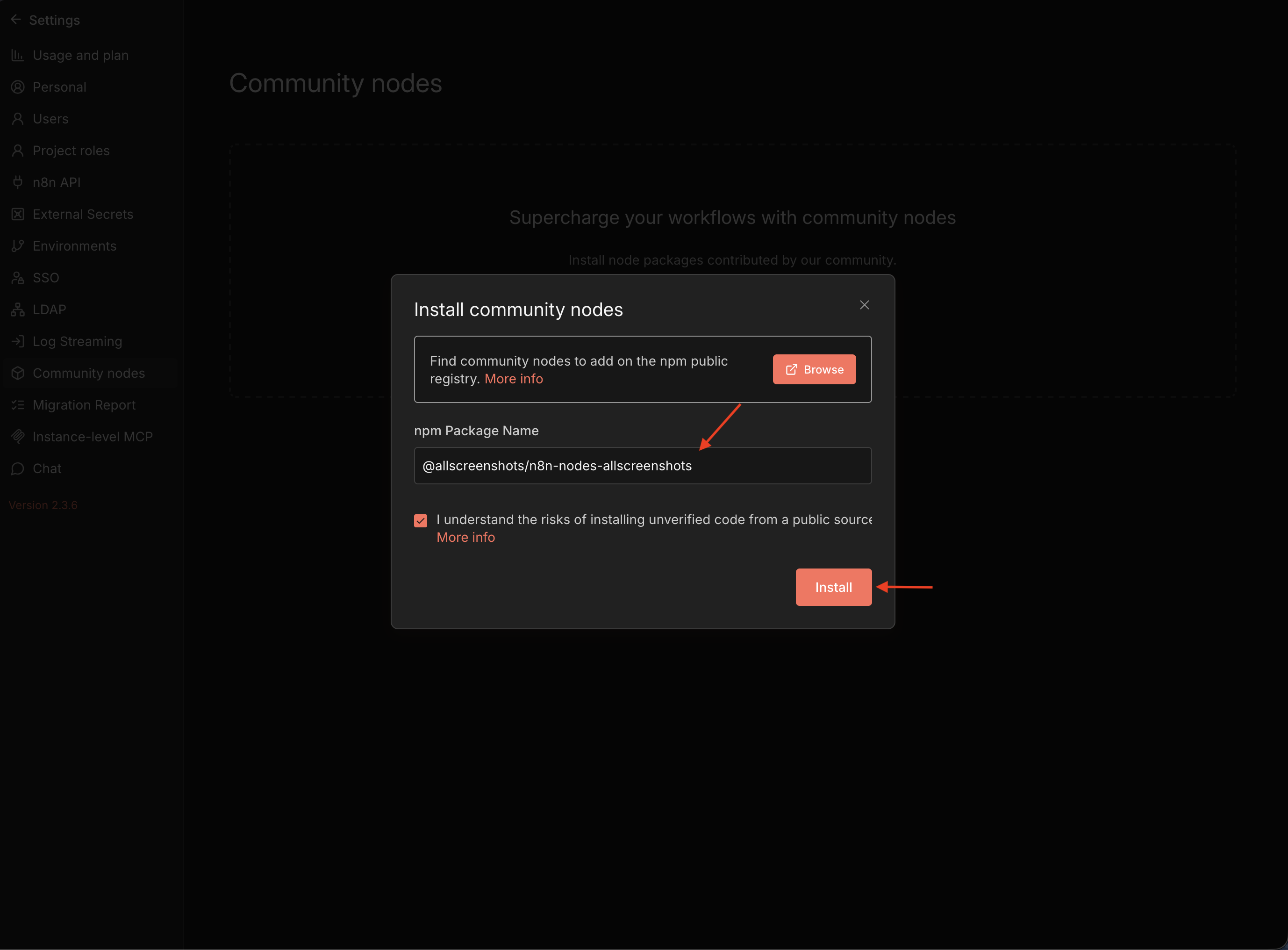
Enter the package name
Set npm Package Name to @allscreenshots/n8n-nodes-allscreenshots, accept the risk acknowledgement, and click Install.
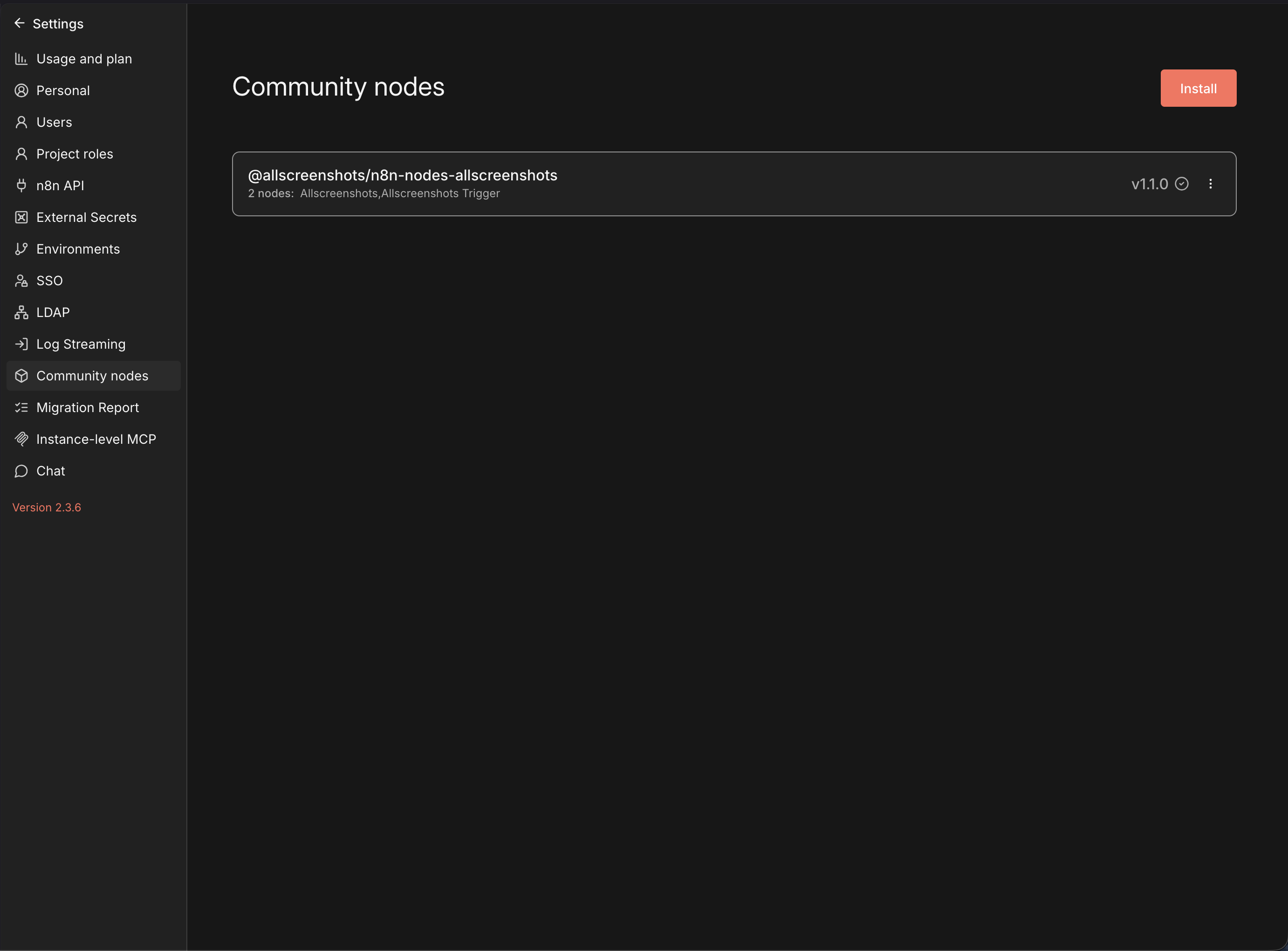
Confirm the install
The package appears under Community Nodes with both nodes — Allscreenshots and Allscreenshots Trigger.
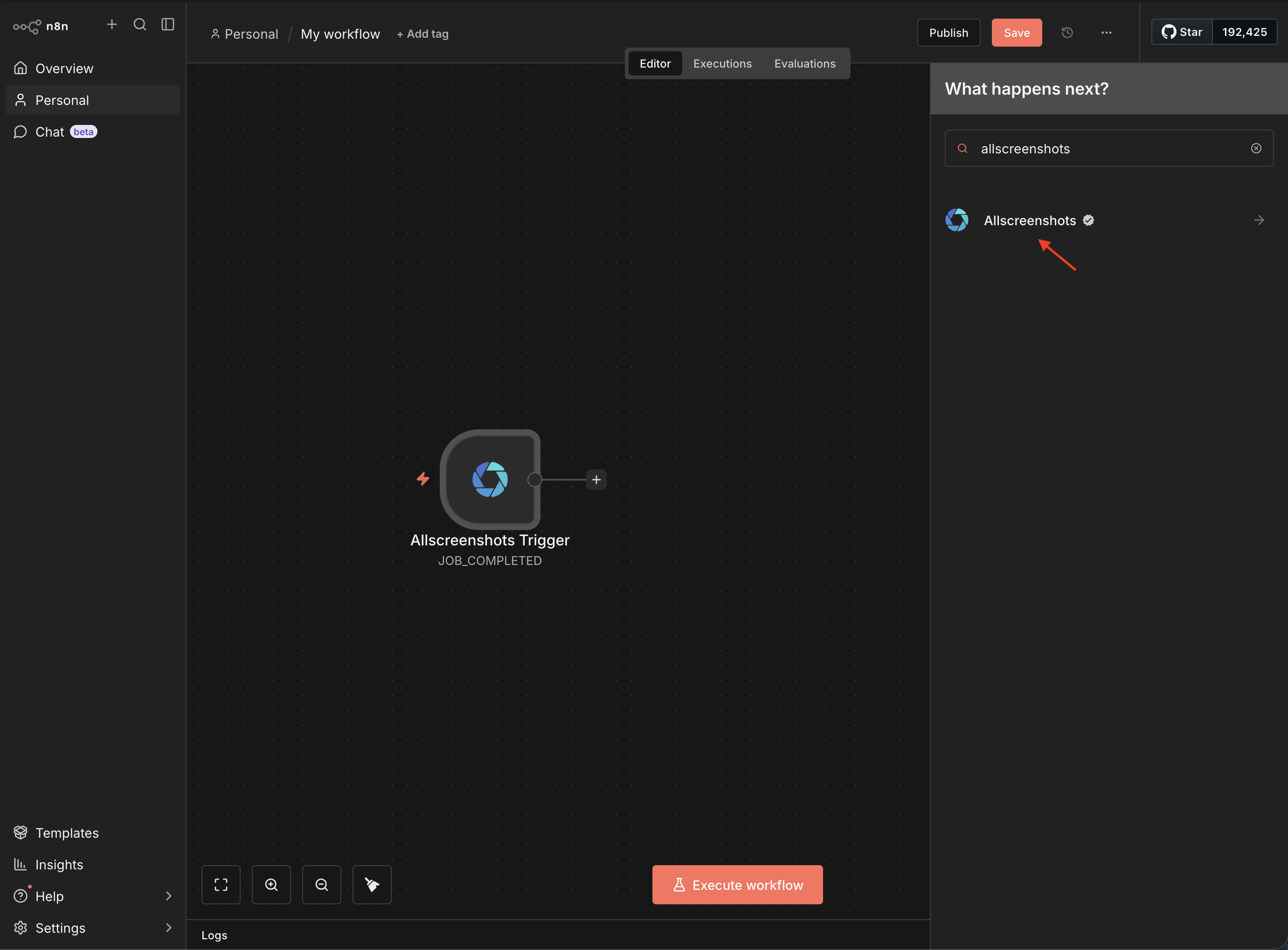
Add a node to your workflow
In the workflow editor, open the node panel, search for allscreenshots, and add the Allscreenshots or Allscreenshots Trigger node.
For self-hosted instances, install the package into your n8n custom nodes directory:
npm install @allscreenshots/n8n-nodes-allscreenshotsRestart n8n to load the nodes. See the n8n community nodes guide for details.
Authentication
Create an API key
Get an API key from the dashboard.
The free tier includes 100 screenshots per month.
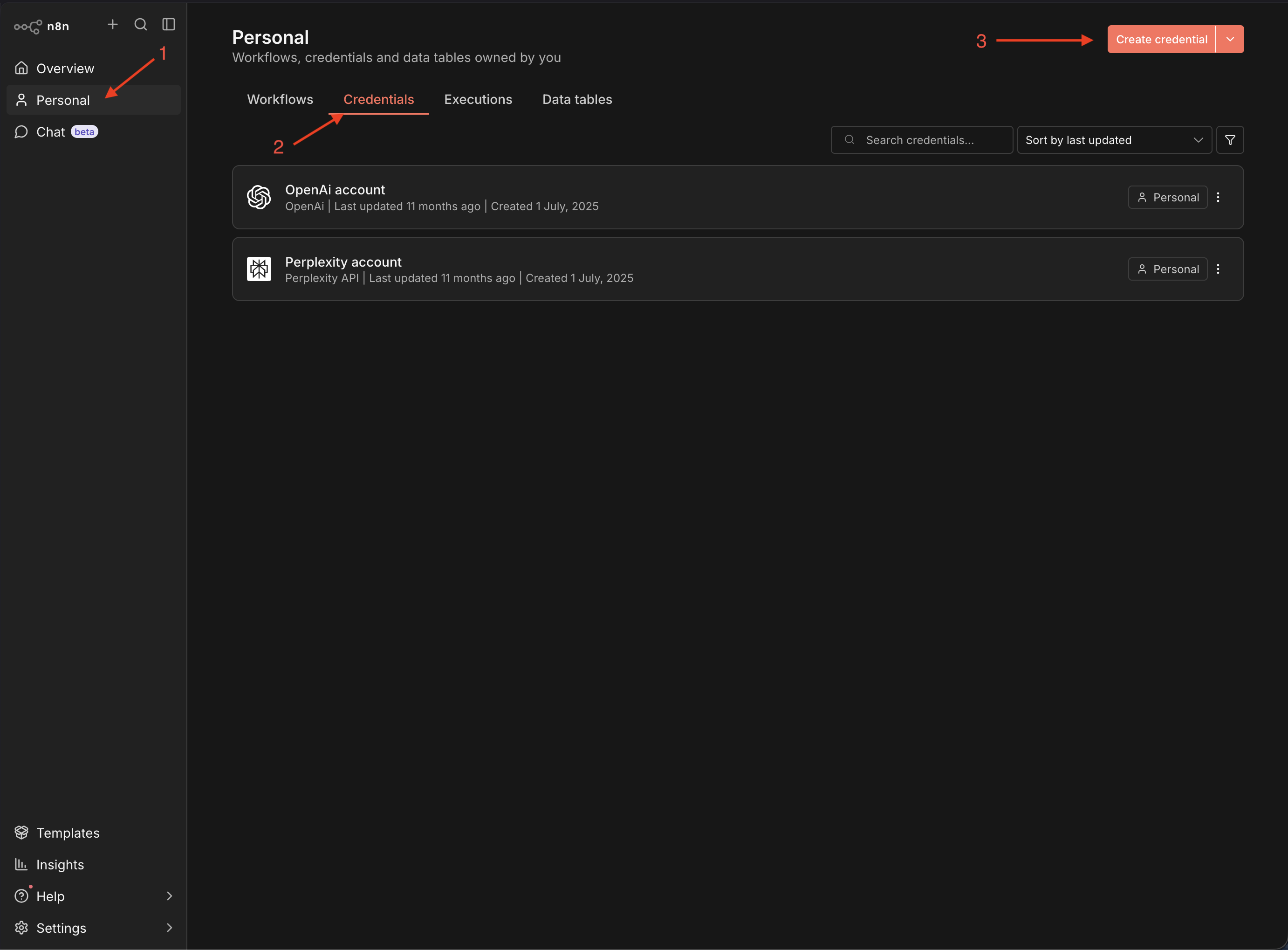
Open the Credentials tab
In n8n, open Personal (or any project), switch to the Credentials tab, and click Create credential. You can also create one inline from the Credential field of an Allscreenshots node.
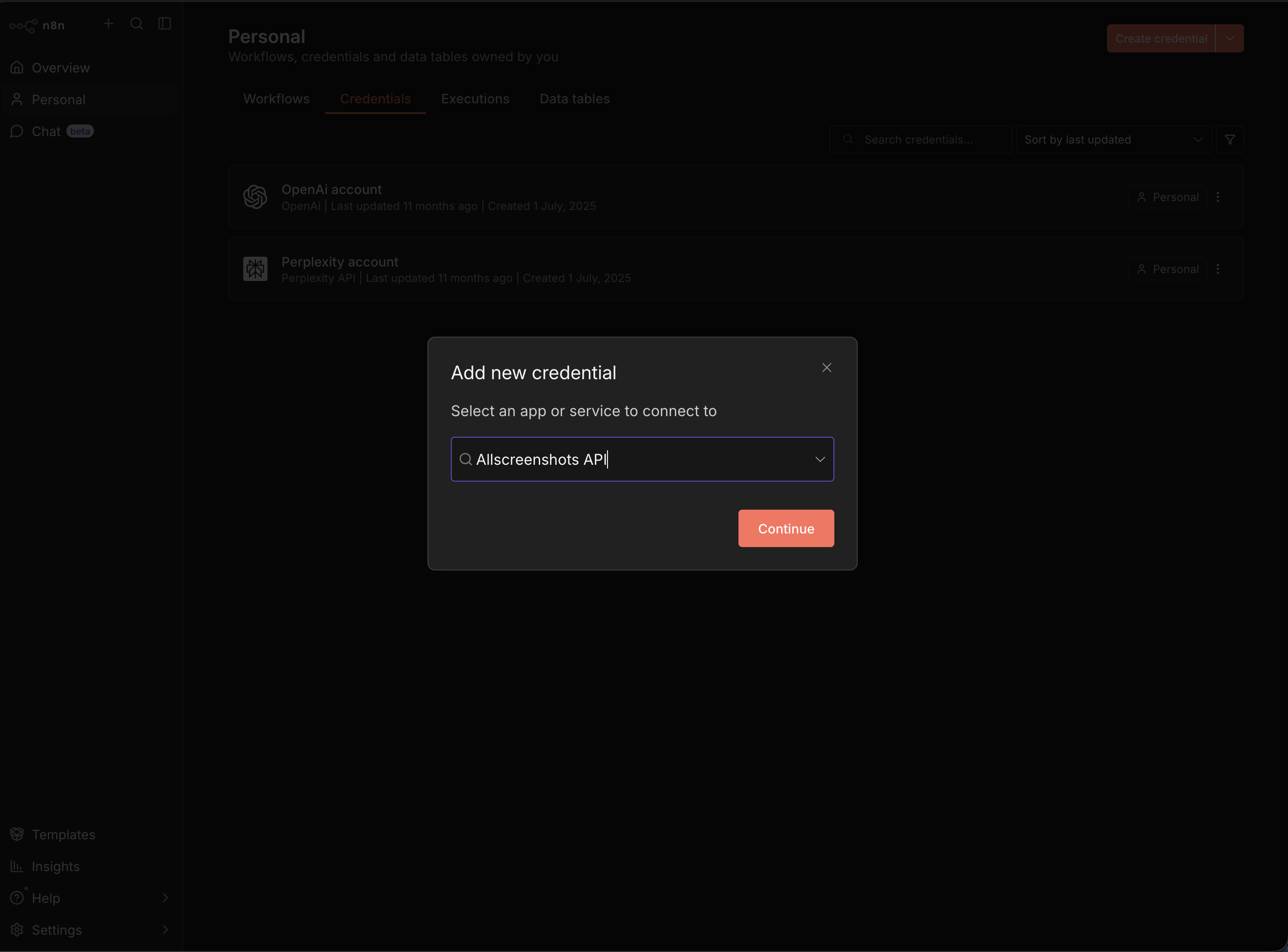
Enter your API key
Paste your key into API Key. Leave Base URL at its default (https://api.allscreenshots.com) unless you target a custom deployment, then Save. n8n tests the connection and shows Connection tested successfully.
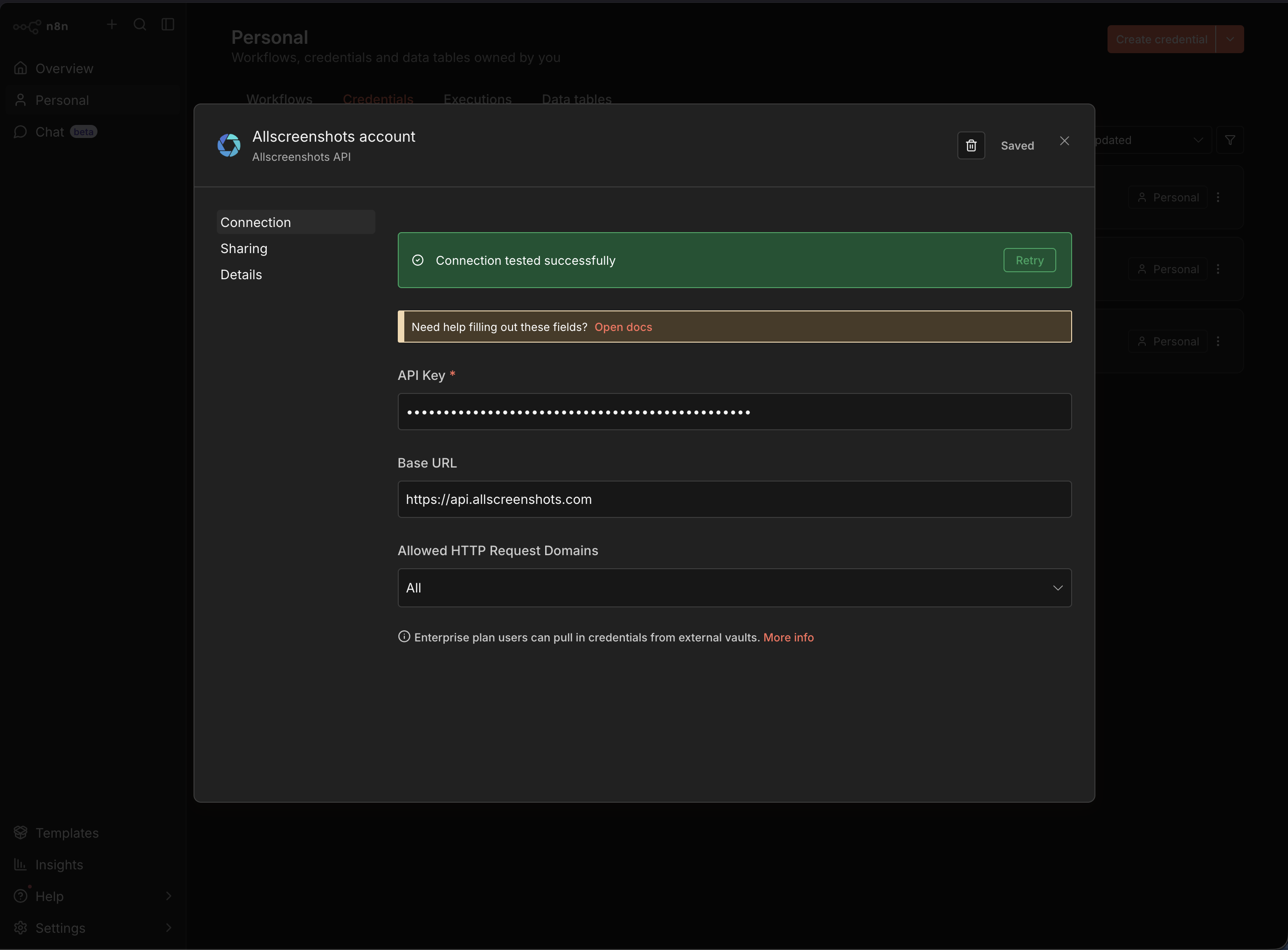
The credential authenticates every request with an X-API-Key header and is validated against the usage endpoint when you save it.
Resources and operations
Select a Resource on the Allscreenshots node, then an Operation. Each resource maps to a section of the REST API.
Screenshot
Capture a single URL. See the Screenshots API.
| Operation | Description |
|---|---|
| Capture | Take a screenshot synchronously and return the image |
| Capture Async | Start a background capture job and return a job ID |
Async Job
Manage background jobs. See the Async Jobs API.
| Operation | Description |
|---|---|
| Get Status | Check whether a job is pending, running, completed, or failed |
| Get Result | Download the finished screenshot as a binary file |
| Cancel | Cancel a pending job |
| List All | List jobs, optionally filtered by status |
Bulk Screenshot
Capture up to 100 URLs in one job. See the Bulk API.
| Operation | Description |
|---|---|
| Create | Start a bulk job from a list of URLs |
| Get Status | Check overall bulk job progress |
| List All | List all bulk jobs |
| Cancel | Cancel a bulk job |
Bulk Create accepts shared default options (device, viewport, format, wait, blocking, stealth, page actions, outputs), per-URL overrides matched by exact URL, and webhook notifications.
Compose
Combine several screenshots into a single image. See the Compose API.
| Operation | Description |
|---|---|
| Create | Compose multiple screenshots into one image |
| Get Status | Check compose job status |
| List Jobs | List all compose jobs |
Two source modes are available: Multiple URLs, or a Single URL captured across several variants (different viewports/devices) for responsive comparisons. Layouts include Auto, Grid, Horizontal, Vertical, Masonry, Mondrian, and Partitioning.
Usage
Check your account limits.
| Operation | Description |
|---|---|
| Get Full Stats | Complete usage statistics with history |
| Get Quota | Current quota status for screenshots and bandwidth |
Capture options
The Screenshot and Bulk Screenshot resources expose the full capture configuration. Common controls:
| Option | Description |
|---|---|
| Device preset | Render as iPhone, Pixel, Galaxy, iPad, Surface, or a social-media size. See Viewport and devices. |
| Custom viewport | Set exact width, height, and device scale factor |
| Output format | PNG, JPEG, WebP, or PDF |
| Response type | Binary file, base64 JSON, or a hosted CDN URL |
| Full page | Capture the entire scrollable page. See Full page capture. |
| Dark mode | Render the page in its dark color scheme |
| Blocking | Remove ads and cookie banners. See Blocking. |
| Wait options | Delay, wait for selector, or wait until network idle |
| Page actions | Click, type, press, hover, select, scroll, or wait before capture. See Interactive actions. |
| Outputs | Produce screenshot, PDF, cleaned HTML, Markdown, or structured JSON from a single page load. See Outputs. |
| Session cookies | Inject cookies to capture authenticated pages |
Async jobs
Capture Async returns a job ID immediately instead of blocking until the screenshot is ready — useful for slow pages or large batches. You then have two ways to collect the result:
- Poll with the Async Job → Get Status operation, then download with Get Result once the job is complete.
Get Resultreturns the file in a binary property with the correct extension inferred from the content type (.png,.jpeg,.webp,.pdf,.html,.md, or.json). - Wait for a webhook using the Allscreenshots Trigger node (below) instead of polling.
Receiving results with the Trigger node
Allscreenshots does not register webhooks through the API — each request carries its own webhook URL. The Allscreenshots Trigger node provides that URL and receives the event.
Webhook callbacks on async screenshot jobs require a paid plan. Attaching a webhook URL to a Capture Async request — which is how the trigger receives Screenshot Completed / Screenshot Failed — needs a Starter plan or higher; on the free tier the request is rejected. Running async captures and polling for the result (Capture Async → Async Job → Get Status → Get Result) stays free. Schedule Executed / Schedule Failed events are available on every tier.
Add the trigger
Add an Allscreenshots Trigger node and copy its Production URL. Choose which events it should accept.
Point a request at it
Paste the production URL into the Webhook URL option of a Screenshot (async), Bulk, Compose, or Schedule request.
Verify the signature (optional)
Set the same Webhook Secret on both the request and the trigger. Allscreenshots signs the payload with HMAC-SHA256 and sends it in the X-Webhook-Signature header.
Supported events
| Event | Fires when |
|---|---|
| All Events | Any event type is received |
| Screenshot Completed | An async screenshot job finishes |
| Screenshot Failed | An async screenshot job fails |
| Bulk Completed | A bulk job finishes every screenshot |
| Schedule Executed | A scheduled capture runs successfully |
| Schedule Failed | A scheduled capture fails |
When a Webhook Secret is set, the trigger rejects any request whose X-Webhook-Signature does not match with a 401. Make sure the secret on the request and the trigger are identical.
Running n8n locally
Allscreenshots delivers webhooks from its servers, so the trigger's URL must be reachable from the public internet. A local install exposes a http://localhost:5678/... URL that Allscreenshots cannot reach, so the trigger never fires. You have two options:
- Poll instead (simplest for local development): skip the trigger and use Capture (sync), or Capture Async followed by Async Job → Get Status and Get Result. No inbound webhook is needed.
- Expose n8n publicly: start n8n with its tunnel (
n8n start --tunnel, intended for testing only), or put n8n behind a public URL and set theWEBHOOK_URLenvironment variable so the trigger advertises a reachable address. n8n Cloud is public by default.
Troubleshooting
Invalid API key
Confirm the key is correct and active. Create a new one from the dashboard.
Quota exceeded
Your monthly screenshot limit has been reached. Upgrade your plan or wait for the next billing period. Use the Usage → Get Quota operation to check remaining capacity.
Trigger not firing
Make sure you copied the trigger's Production URL (not the test URL) into the request's Webhook URL, that the selected event matches the request type, and that the Webhook Secret is identical on both sides — a mismatch returns a 401.
Result is empty
Async captures return a job ID, not the image. Use Async Job → Get Result once the job is complete, and set a Binary Property name to receive the file.